Docs / Connect a WordPress site
Guides
Connect WordPress in two minutes.
recto publishes approved links back to your site through WordPress’s own REST API, using an Application Password — a scoped, revocable credential that is separate from your login password. Here is exactly where to find it.
1Open your WordPress profile
Sign in to your WordPress admin (yoursite.com/wp-admin). In the left menu go to Users → Profile (or Users → All Users, then click your own name and Edit).
2Find the Application Passwords section
Scroll to the bottom of the profile page to the Application Passwords section. In the New Application Password Name field, type a name you’ll recognise later — for example recto — then click Add New Application Password.
3Copy the generated password
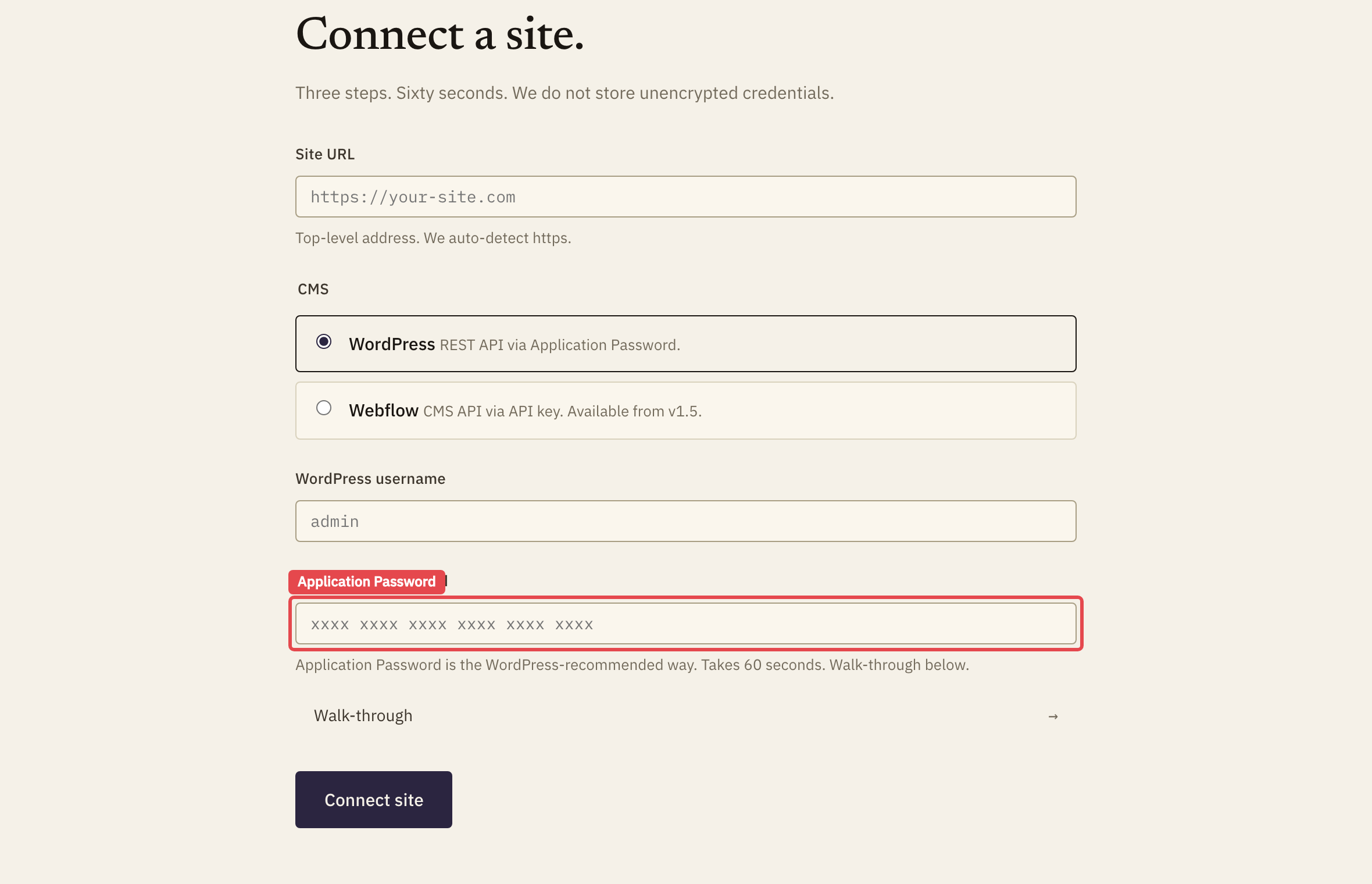
WordPress shows the new password once, formatted as six groups of four characters: xxxx xxxx xxxx xxxx xxxx xxxx. Copy it now — you cannot see it again. (You can paste it with or without the spaces; recto handles both.)
4Paste it into recto
Back in recto on the connect-a-site screen, enter your site URL, your WordPress username, and the Application Password you just copied. recto immediately calls your REST API to verify the credential — a wrong username or password is caught here, not later when a publish fails.